
This article walks through how to deactivate Multi-Factor Authentication (MFA) from your user profile.
Before getting started:
Make sure you have access to your MFA mobile app.
You’ll be asked to enter a six-digit verification code from the app to confirm deactivation.
How to Deactivate MFA
Step 1: Navigate to Your Profile
Click the hamburger menu (☰).
Select My Profile.
You will be taken to the Manage My Profile page.
Step 2: Deactivate MFA
Locate the Multi-Factor Authentication (MFA) section.
Select Deactivate MFA.
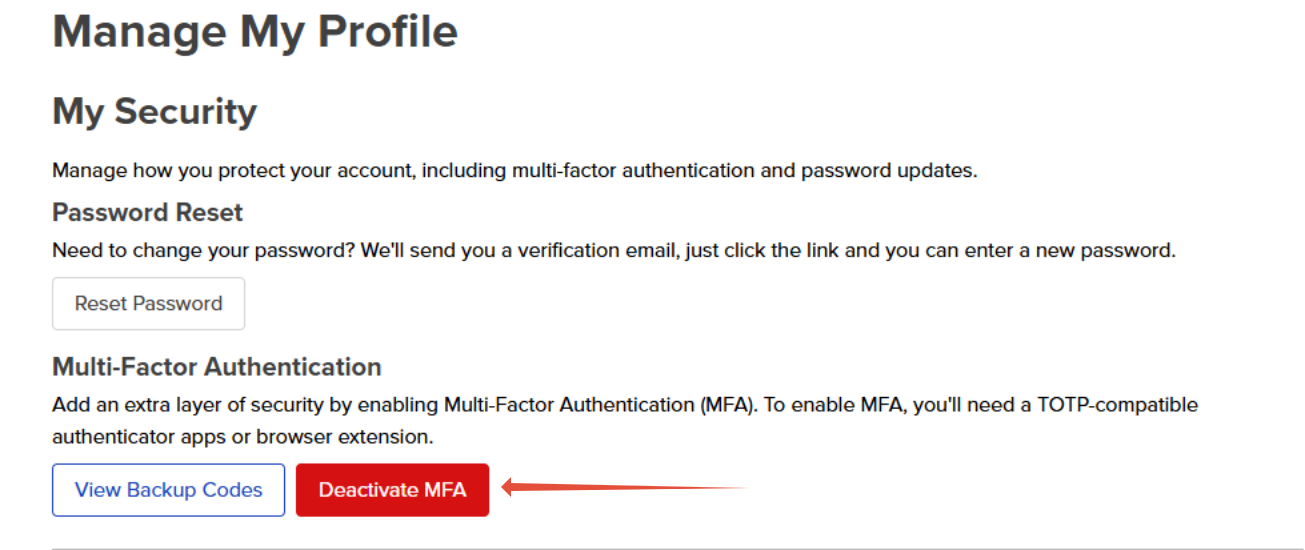
Step 3: Confirm Deactivation
When prompted, open your MFA mobile app.
Enter the six-digit verification code generated by the app.
Select Deactivate to confirm.
Confirmation
Once MFA has been successfully deactivated, you will see a confirmation message indicating that MFA is disabled for your account.
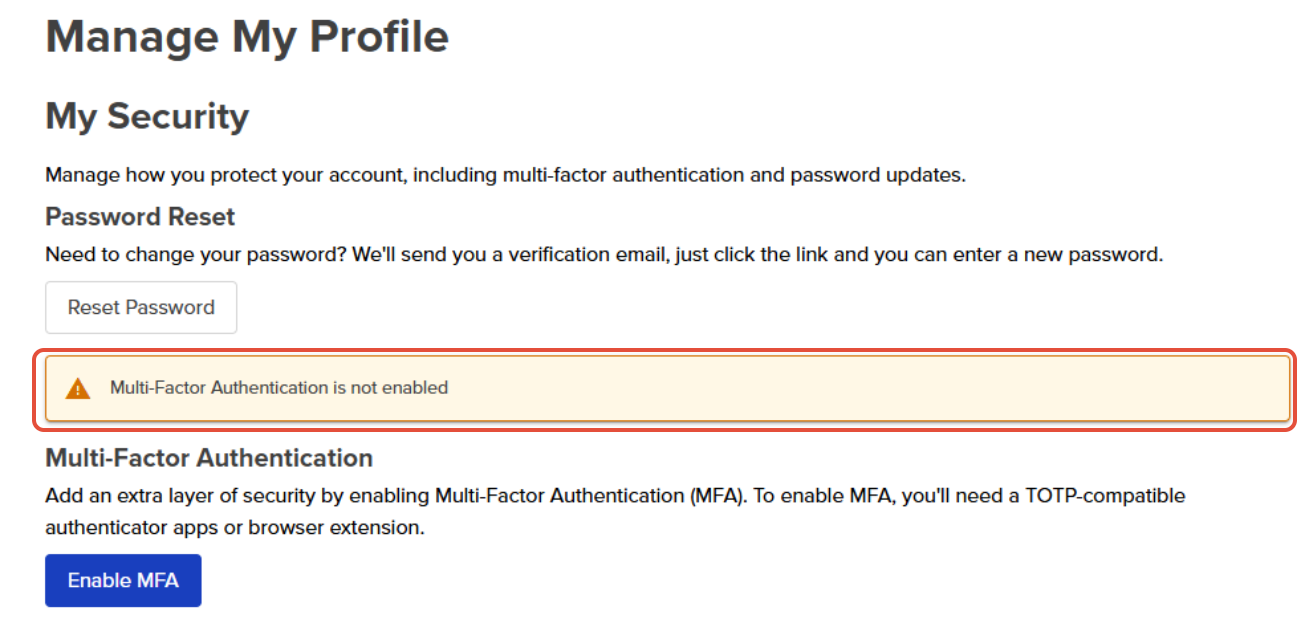
Once MFA is disabled, you will no longer be prompted for a verification code when signing in.
Related Articles:
Please reach out to the Support Team if you have any questions. We are happy to help!
