
Overview
Multi-Factor Authentication (MFA) adds an extra layer of security to your account by requiring both your password and a one-time verification code generated by a mobile app. This article explains how to enable MFA as we transition from two-factor authentication (2FA) to MFA.
Note: SSO users: MFA setup does not apply when logging in via Single Sign-On.
Supported MFA Mobile Apps
You will need to install an authenticator app on your mobile device before enabling MFA. Supported apps include:
These apps are available for both iOS and Android devices.
How to Enable MFA
Step 1: Navigate to Your Profile
Click the hamburger menu (☰).
Select My Profile.
You will be taken to the Manage My Profile page.
Step 2: Enable MFA
On the Manage My Profile page, locate the Multi‑Factor Authentication (MFA) section.
Select Enable MFA.
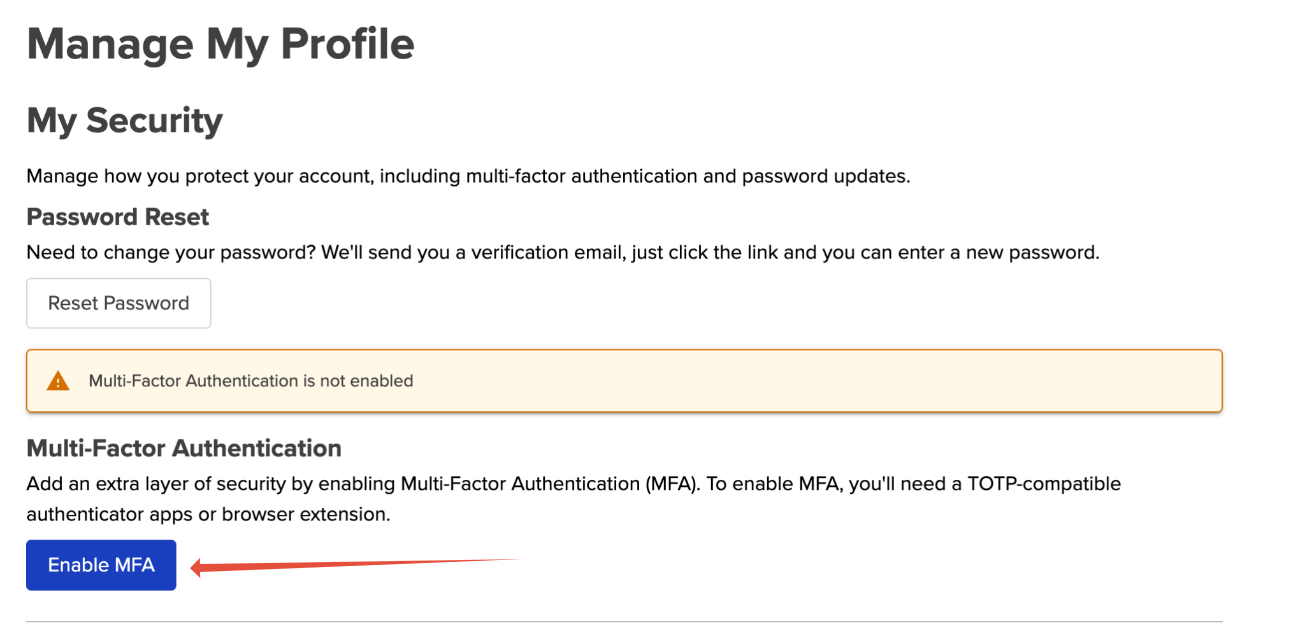
Once selected, a QR code will be generated on the screen.
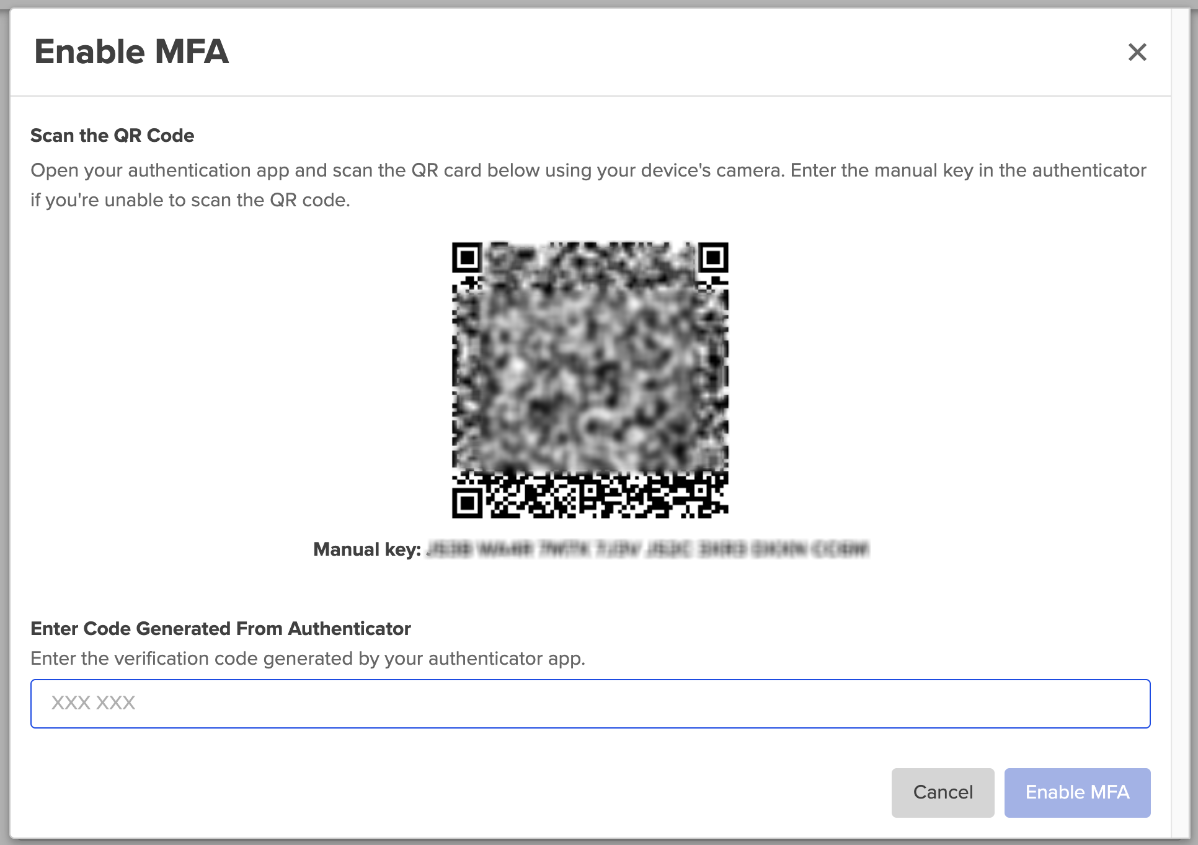
Step 3: Open Your MFA Mobile App
Open your chosen MFA mobile app on your device.
In most apps, select the plus (+) icon and choose Scan a QR code.
Step 4: Scan the QR Code
Use your mobile device to scan the QR code displayed on your screen.
The MFA app will generate a six‑digit verification code.
Enter the six‑digit code to complete setup.
Alternative Setup: Manual Key Entry (No Camera Access)
If you do not have access to a camera:
Select the option to use the manual key.
Enter the provided manual key into your MFA mobile app.
The app will generate a six‑digit verification code for you to enter.
What to Expect After MFA Is Enabled
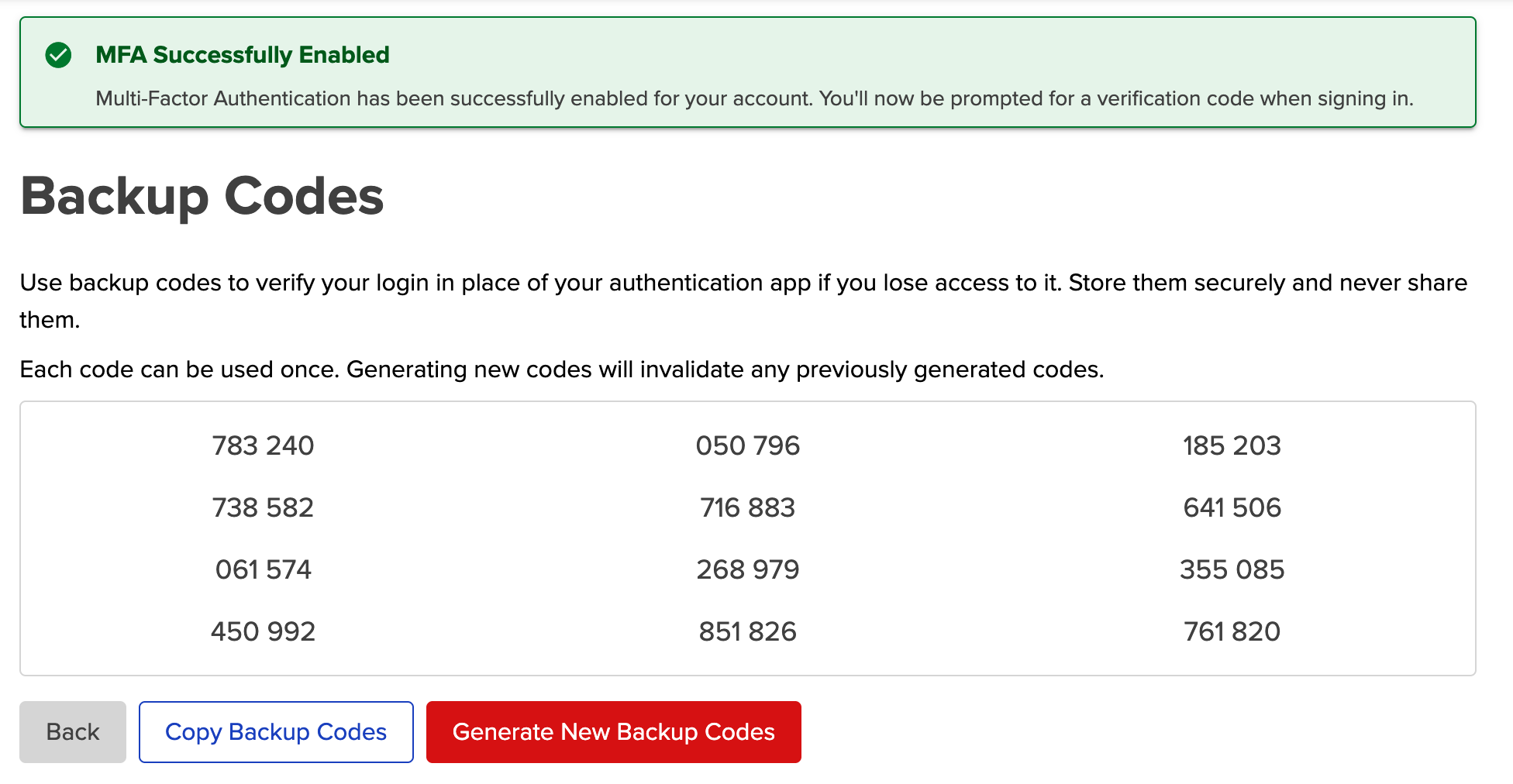
Once your MFA setup is verified, you will be shown a list of Backup Codes.
Be sure to save these Backup Codes in a secure location by manually copying and pasting them. Do not share these codes in any groups or with other users. If you ever lose access to your mobile device or authenticator app, you will need to use one of these Backup Codes to log in and reset your MFA.
Tips and Best Practices
Keep your mobile device secure and accessible.
Consider installing the authenticator app on a primary device you use regularly.
If you lose access to your MFA device, contact your system administrator or support for assistance.
Need Help?
If you experience issues enabling MFA or have questions about the process, please reach out to the support team. We are happy to assist you!
Related Support Articles:
