
Hiring is already a full-time job, literally. The last thing you need is a job posting that quietly disappears into the void before the right candidates ever see it.
Indeed now prioritizes sponsored posts heavily, and free listings often get buried. Sponsoring a job gives your open roles a visibility boost, puts them in front of more qualified applicants, and helps you fill positions faster. This guide walks through connecting your Indeed Employer Account to your ATS and getting your first sponsored job off the ground.
Why sponsor a job on Indeed?
Free job postings on Indeed used to be a solid starting point, but the landscape has shifted. Indeed has significantly deprioritized non-sponsored posts, and in some cases free listings are nearly impossible to find in search results.
In other words: if you're relying on a free posting to do the heavy lifting, there's a good chance it's sitting politely at the bottom of the pile while your competitors' sponsored jobs take the top spots. Sponsoring makes sure your job actually gets seen.
How the Indeed posting process works
Before you dive into setup, it helps to understand how a job travels from your ATS to Indeed. Here's the standard flow:
- You create the job in your ATS.
- Your ATS sends the job to Indeed via an XML feed.
- Indeed scrapes that feed every four to six hours.
- Indeed maps the job to your company page.
- Your job appears on Indeed as a free listing.
When you sponsor a job, only the basic job details and your budget are sent to Indeed through an API, which is much faster than the XML feed. Indeed then finds the existing job in their system and converts it from a free listing into a sponsored one.
Important: the free listing has to exist first. If your job hasn't appeared on Indeed as a free listing yet, Indeed has nothing to convert, and your sponsorship request will be rejected. Always wait until the free listing is live before sponsoring. Not sure whether it's live? Our support team can confirm for you.
Indeed is the only job board that requires this particular two-step setup. We know the wait can be frustrating when you're ready to go live, but it's how their system works for now.
Before you begin: what you'll need
Two things need to be in place before you connect:
- Matching emails. Your ATS user email must match the email on your Indeed Employer Account exactly.
- Admin access on Indeed. Every user who wants to order sponsored ads needs Admin-level access on the Indeed Employer Account.
That second one trips people up, so it's worth spelling out: Indeed restricts users with lower access levels from purchasing sponsored jobs through third-party platforms like your ATS. Those users can only sponsor directly on Indeed. Confirm your access level before you start, and you'll save yourself a puzzling error later.
Step 1: Verify your email matches
- In your ATS, click the menu icon in the upper right corner.
- Go to Account Details, then Manage Users.
- Confirm the email listed for you matches the one on your Indeed Employer Account.
Step 2: Confirm Your Access Level on Indeed
Next, verify that you have Admin access on your Indeed Employer Account:
- Log in to your Indeed Employer Account.
- Click the menu in the upper right and select Users.
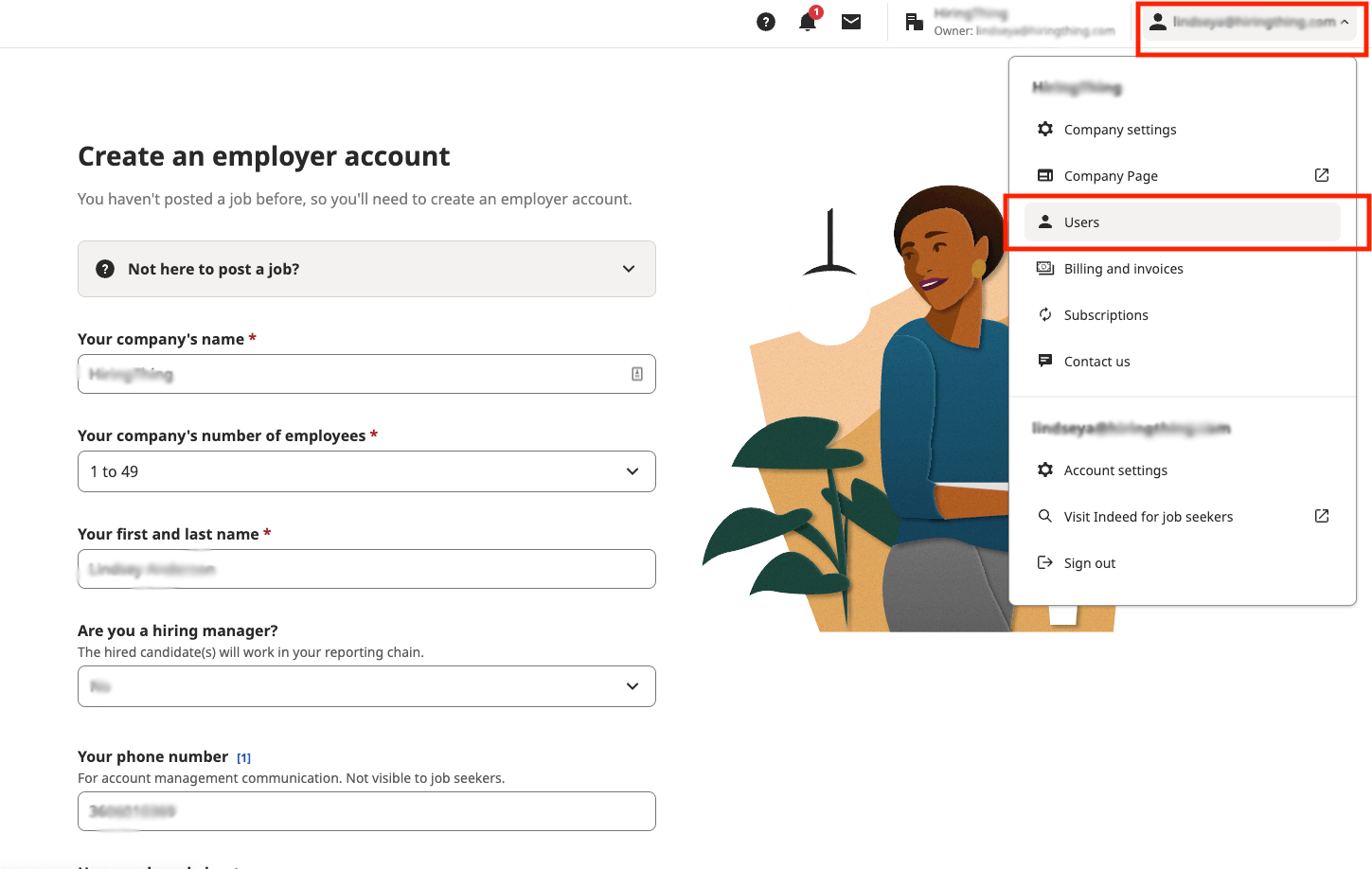
- Confirm that your email is listed and that your access level is set to Admin.
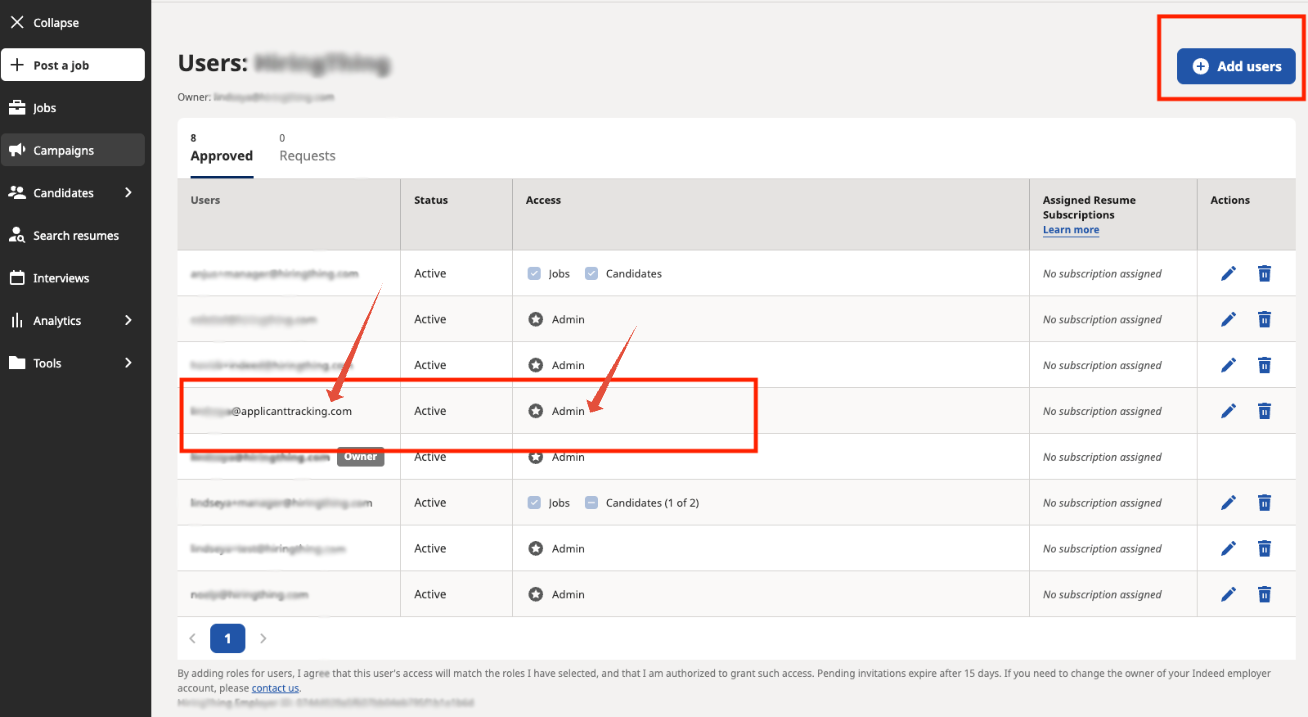
If you are not listed as an Admin, here is how to fix that:
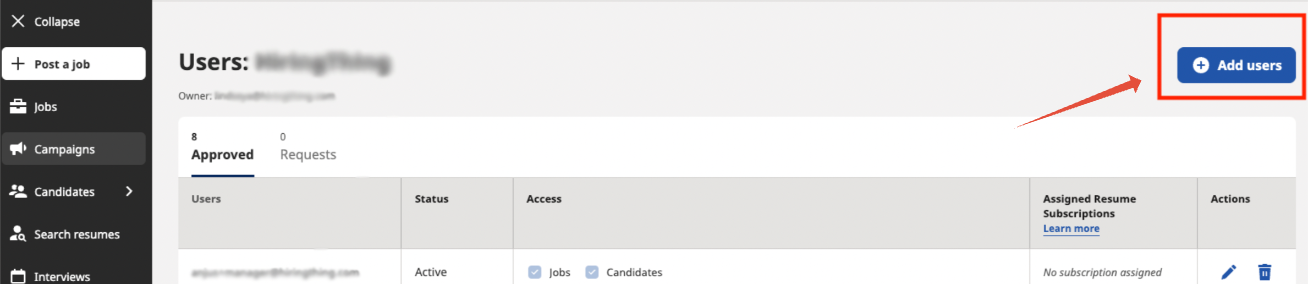
- Click Add Users and enter your ATS email address.
- Assign Admin access.
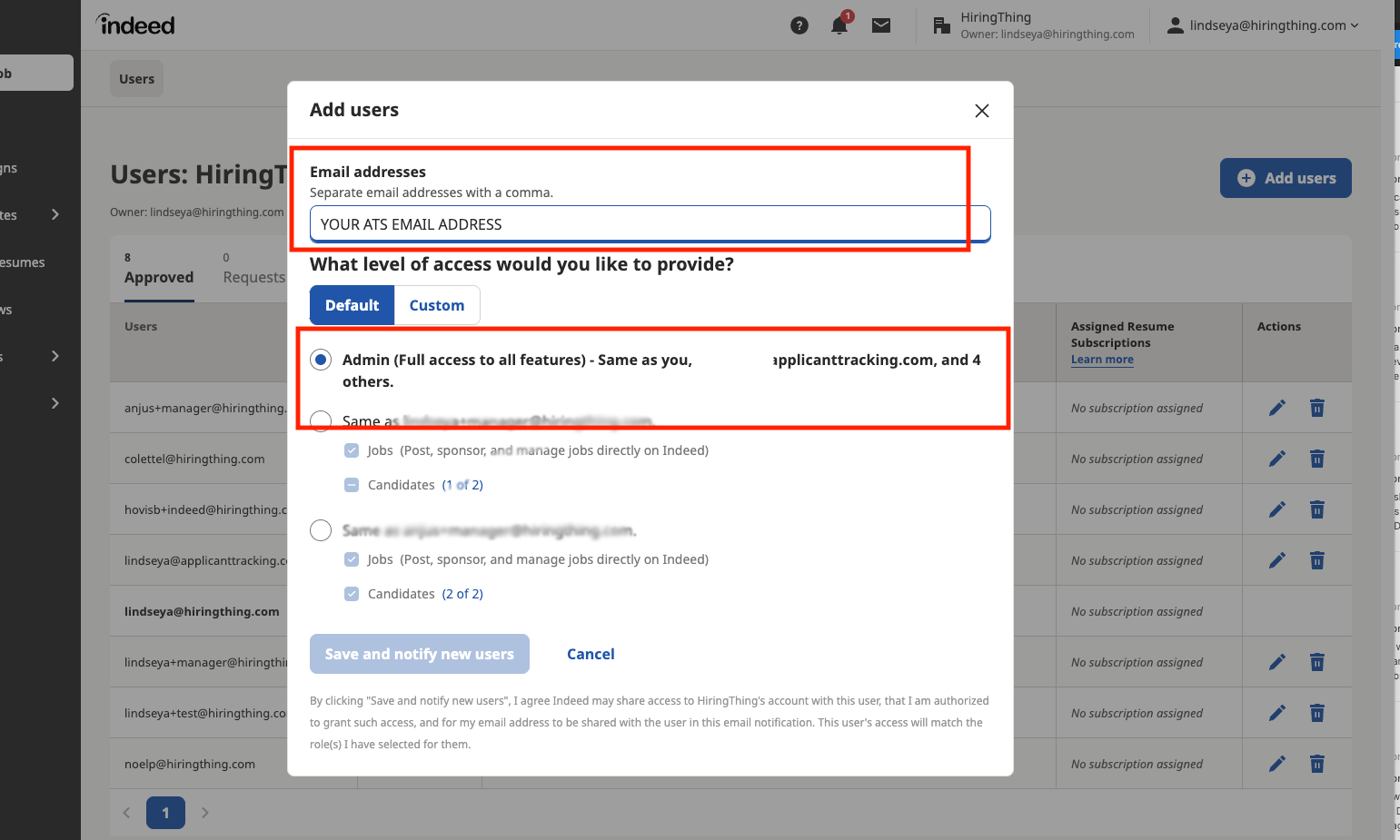
- Confirm any verification emails from Indeed to finalize the addition.
Step 3: Primary Account Owner -- Establish the Main Connection
The Primary Account Owner (also called the Indeed Employer Account Owner) must be the first person to connect. This establishes the main Indeed Sponsored connection for the entire account. Once this is in place, other users can link their individual accounts.
Not the Primary Account Owner? If you are not the Primary Account Owner, skip ahead to Step 4. The main connection must be established first before individual users can connect. |
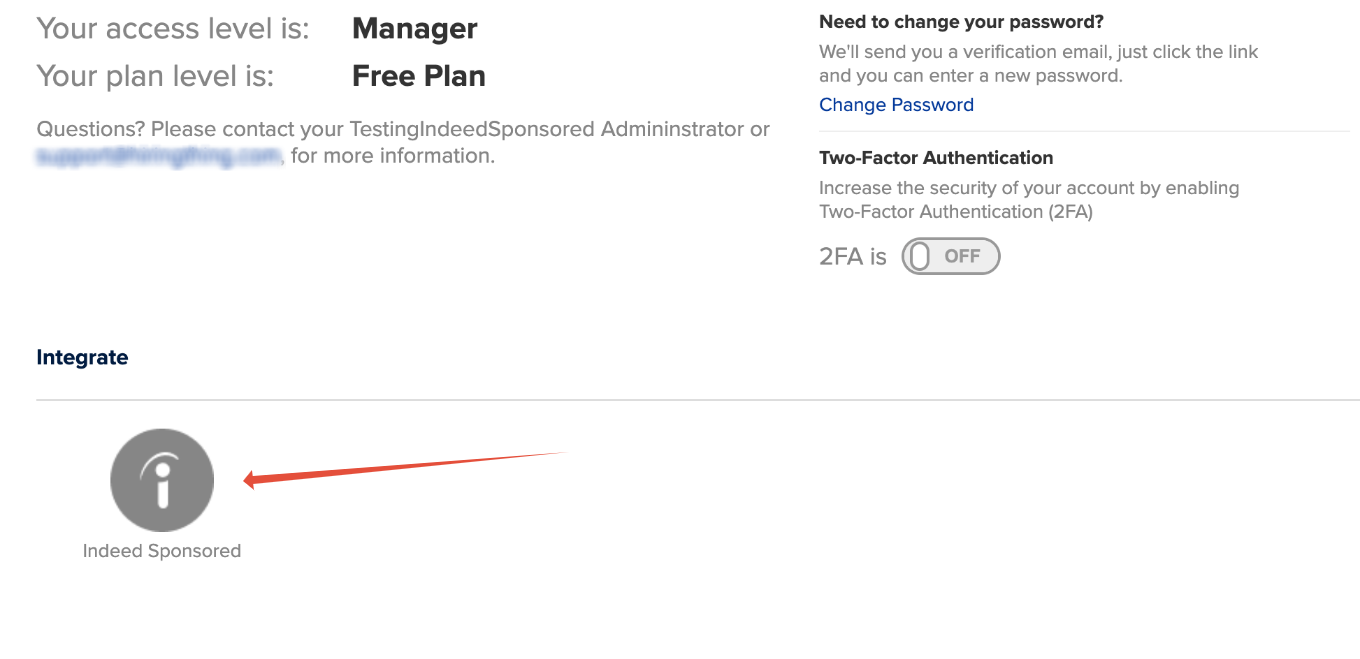
- In the ATS, go to Main Menu > Account Details > Indeed Sponsored.
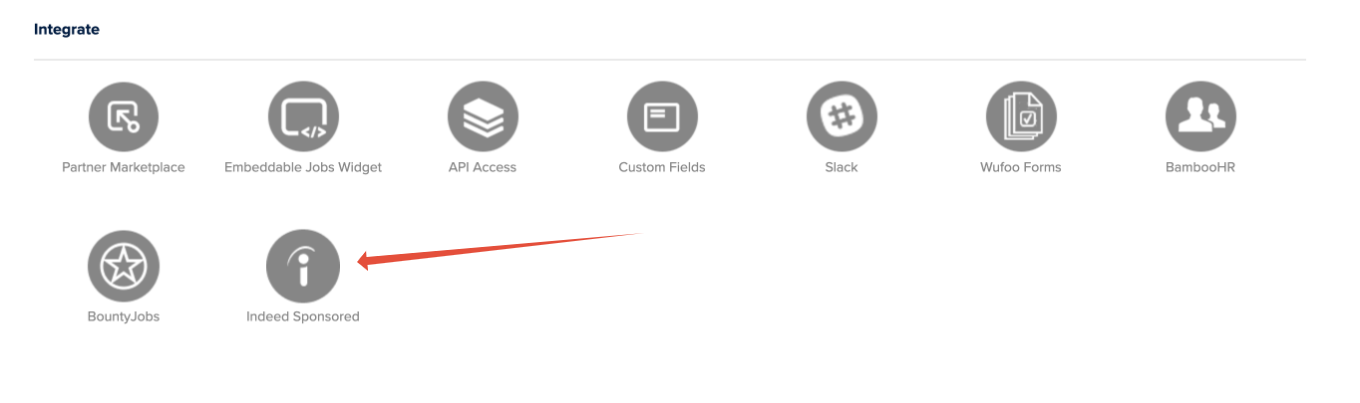
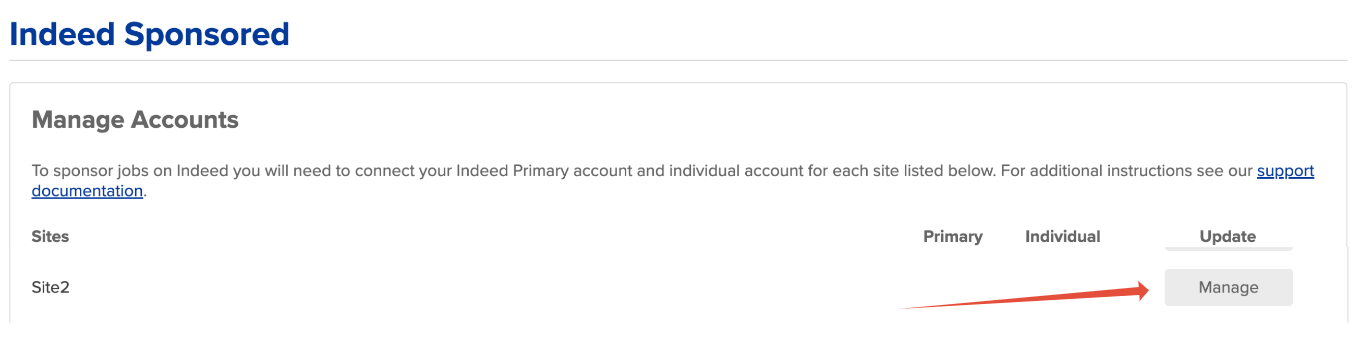
- Click Manage next to your account name.
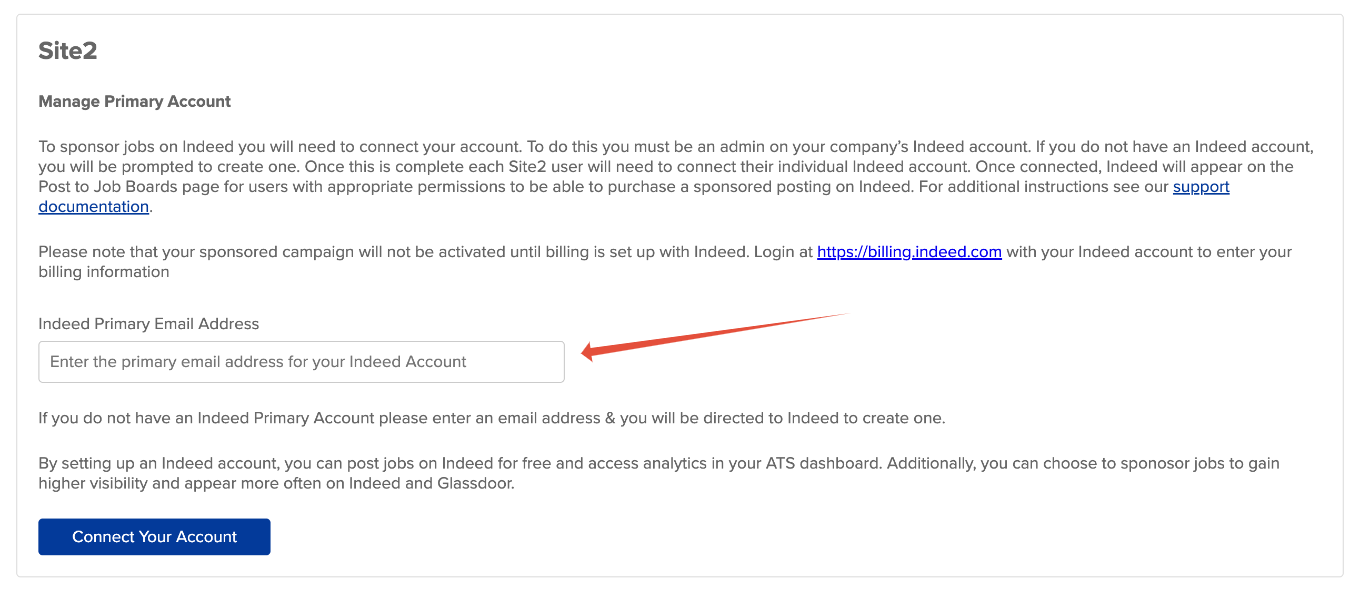
- Enter your Indeed Employer Account email. If you do not have an account, you will be prompted to create one.
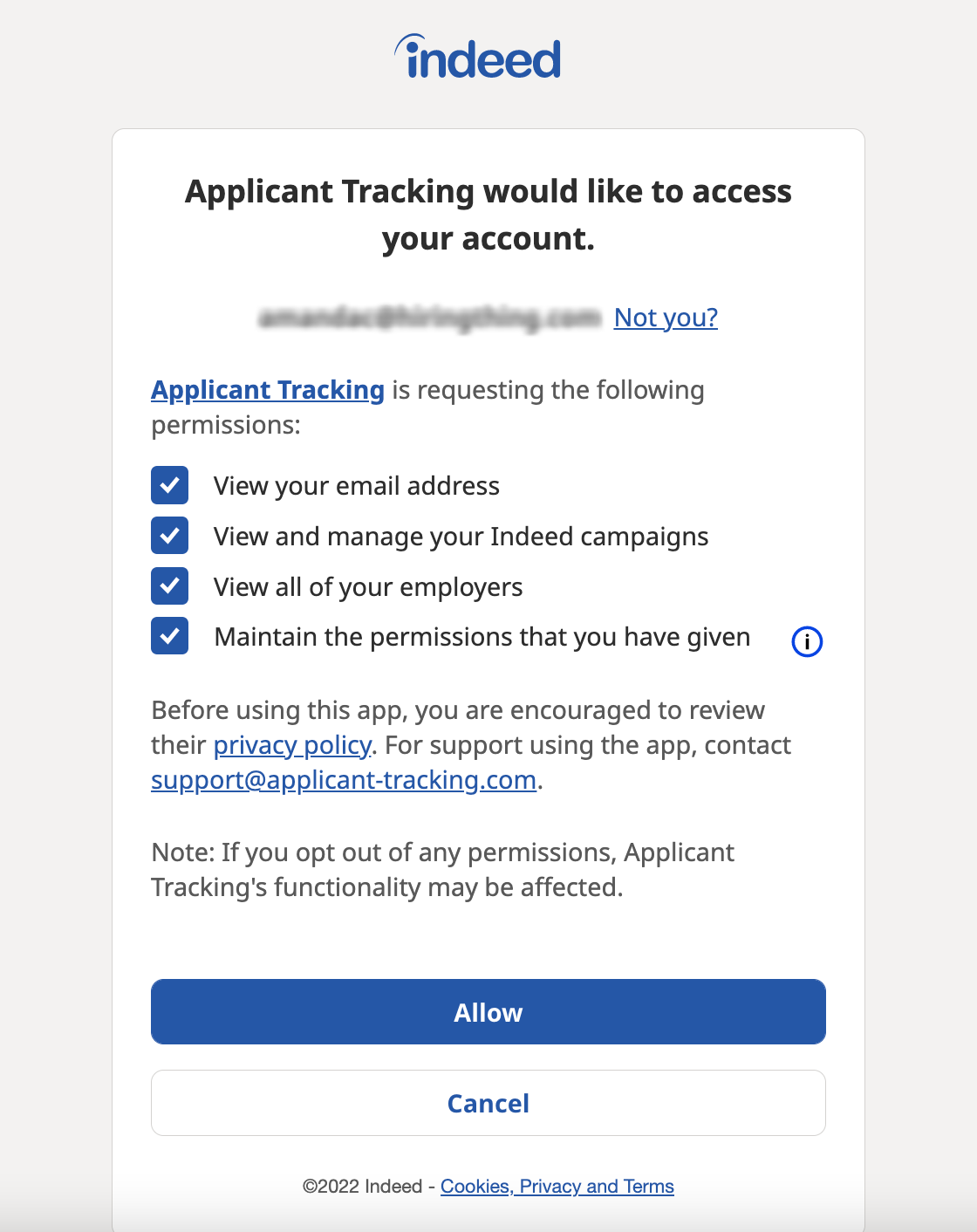
- Click Allow to grant the necessary permissions.
- Select your employer name when prompted.
- Upon a successful connection, you will see a confirmation screen.
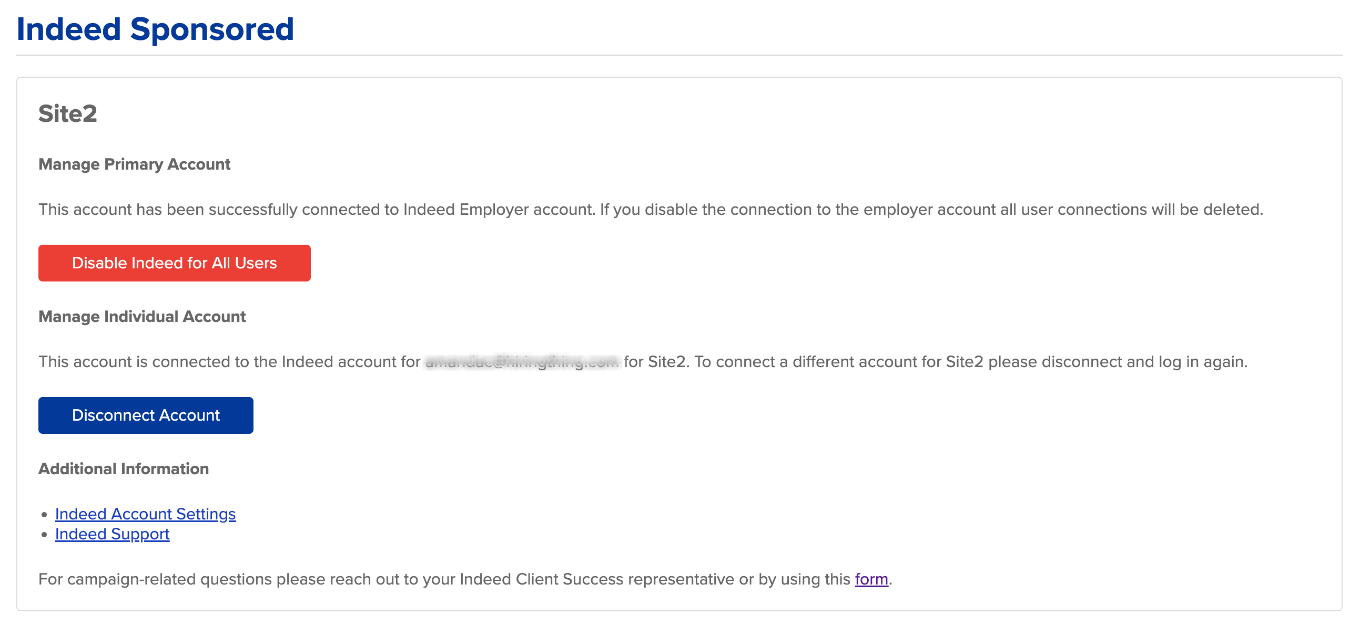
Once you return to Main Menu > Account Details > Indeed Sponsored, you should see a checkmark under both Parent and Individual, confirming that the account is successfully connected. Individual users on your account can now link their own accounts.
Need to Disable Indeed Sponsored? Go to Main Menu > Account Details > Indeed Sponsored. Click Manage next to your account name, then select the red Disable Indeed For All Users button. This will turn off Indeed Sponsored for all users on the account. |
Step 4: Individual Users -- Connect Your Account
Once the Primary Account Owner has established the main connection, every individual user who wants to post sponsored jobs needs to connect their own Indeed account. Here is how:
- In the ATS, go to Main Menu > Account Details > Indeed Sponsored.
- Click Manage next to your account name.
- Enter your Indeed Employer Account email and grant the required permissions.
- After completing the authorization on Indeed, you will be redirected back to the ATS and should see a confirmation screen.
If you ever need to disconnect your individual account, simply click the Disconnect Account button on this screen.
Note: Account Details Access Some users may not have access to all functions within Account Details due to permission settings. However, all users should always see the Indeed Sponsored option. If you do not see it, reach out to your account administrator. |
Best Practice: When to Sponsor
Always wait until your job is visible on Indeed as a free listing before attempting to sponsor it. Once the free listing is live, you are good to go. If you are not sure whether your job has appeared yet, our support team can help you confirm before you proceed.
Need Help?
Whether you are troubleshooting a connection, waiting on a listing to go live, or just want someone to walk you through the process, our support team is here for it. Reach out anytime -- we are happy to make the sponsorship process smoother than a freshly paved road.
